
In the inline preview, editors can be offered menu commands or wizards for execution or single fields for editing.
An action is displayed in the preview as a link whose appearance can be modified by specifying an icon or HTML text. If neither an icon nor HTML text is specified, the configured icon or the localized title of the action, respectively, is used. The following screenshot illustrates how this functionality can be used by the editorial staff to re-sort the items in a menu:
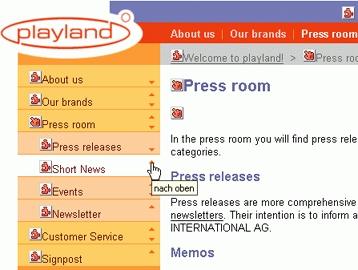
The actions that can be triggered effect the file in whose context they are defined. This makes it possible, for example, to edit the files displayed in a generated table of contents.
Editing elements (markers) are also offered for mirror files. The elements affect the corresponding original files.
There are two types of markers: action markers (ActionMarker) for executing menu commands or wizards, and edit markers (EditMarker) for editing field values.
Syntax
<npsgui insertMarker="type" name="name" icon="iconFile"><HTMLcode></npsgui>
Parameters
-
typedefines the type of the link to be inserted:-
item: The link inserted allows a menu command or a wizard to be executed (action marker). -
attribute: The link inserted allows a field value or link to be edited (edit marker).
-
-
name: Iftypeisitem,nameis an ID of a registered action. Iftypeisattribute,namespecifies the name of the field to be edited. -
iconFileis the name of an icon in the theme directory of the GUI web application. The size of the icon should be 31×31 pixels. This parameter is optional. -
HTMLcodeis the HTML code to be linked so that the action can be triggered. If both an icon and HTML text are given, the text has precedence over the icon.HTMLcodeis optional as well.
Example
The editing element with which a menu item can be moved upwards (as shown in the screenshot above) is generated by means of the following code:
<npsgui insertMarker="item" name="changeSortOrder" objId1="@{_previous}" objId2="@{self}">
  <img src="ressourcen/icons/inlinePreview/sortUp.gif" title="up" />
</npsgui>
Parameterizing Wizards
If a link with which a wizard is executed is embedded into the inline preview, you can pass
parameters to the wizard. For
example, in order to include a wizard for editing a particular field, specify the
additional attributeName tag attribute:
<npsgui insertMarker="item" name="attributeEditWizard" attributeName="name">Edit name></npsgui>
All tag attributes except insertMarker, name, icon, and
context are added to the parameters passed to the wizard. The parameter names are
prefixed with wizard. so that the wizard can access attributeName, for
example, under wizard.attributeName.
Positioning Edit Markers Dynamically
From version 6.7.1, markers of the attribute type can be positioned dynamically to
minimize the corrupting effects they may have on the layout. If this is used, the GUI will not
insert the markers directly where the values are output. Instead, only span elements
that serve as anchors will be generated. The editing elements themselves are placed into invisible
containers that are positioned and made visible using JavaScript as soon as the markers need to be
displayed. The editing elements are then placed on top of the respective content to be edited:
This positioning method does not work with content that is hidden or displayed using JavaScript (such as JavaScript menus).
To position markers dynamically, specify the placeWithJS attribute and assign
true to it:
<npsgui insertMarker="attribute" placeWithJS="true" … />
Please note that dynamically positioned markers may not consist of custom HTML code. Also, the
icon displayed can only be changed via the display theme, not by means of
the icon attribute.
To improve dynamic positioning, or to apply effects such as highlighting to the content to be
edited, the npsgui-Element may enclose this content. The GUI will then place the
content inside the span element used as an anchor:
<npsgui … placeWithJS="true"><npsobj insertvalue="var" name="title" /></npsgui>
By means of the containerTag attribute, a different anchor element can be specified
in case span is disallowed (because, for example, the HTML code enclosed contains a
block element):
<npsgui … placeWithJS="true" containerTag="div"><p>…</p></npsgui>
Changing Marker Display
The way how dynamically positioned markers are displayed can be influenced by means of JavaScript. The following example illustrates how markers can be made transparent, and how the content to be edited can be highlighted when the mouse hovers over the marker.

For these effects either the JavaScript libraries Prototype and Scriptaculous, or jQuery can be
used. The respective libraries need to be present in the CMS as content and must be included in the
head section of the HTML pages. The following extract from a layout file provides the
required part of this section.
<!-- Version using Protoype and Scriptaculous -->

<npsgui>
  <script type="text/javascript" language="JavaScript"
    src="/javascripts/prototype.js"></script>
  <script type="text/javascript" language="JavaScript"
    src="/javascripts/scriptaculous.js?load=effects"></script>

  <script type="text/javascript">

  /*************************************/
  /* Helper functions for highlighting */

  function rememberHighlightingStyle(myElement)
  {
    myElement.rememberBackgroundColor = myElement.getStyle('backgroundColor');
    myElement.rememberZoom = myElement.getStyle('zoom');
    myElement.rememberColor = myElement.getStyle('color');
  }

  function highlight(myElement)
  {
    // setting the zoom works around incomplete redraws on ie6
    myElement.setStyle({
      backgroundColor: '#ffffaa',
      zoom: 1,
      color: '#000000'
    });
  }

  function startHighlighting(myElement)
  {
    rememberHighlightingStyle(myElement);
    highlight(myElement);
  }

  function stopHighlighting(myElement)
  {
    myElement.setStyle({
      backgroundColor: myElement.rememberBackgroundColor,
      zoom: myElement.rememberZoom,
      color: myElement.rememberColor
    });
  }

  /********************************************************/
  /* Function for positioning and customizing the markers */

  function placeEditMarker(marker, anchor, offsetLeft, offsetTop)
  {
    marker.onmouseover = function() {
      new Effect.Opacity(this, { from: 0.3, to: 1.0, duration: 0.3 });
      anchor.descendants().each(function(e) { rememberHighlightingStyle(e) });
      anchor.descendants().each(function(e) { highlight(e) });
      return startHighlighting(anchor);
    };
    marker.onmouseout = function() {
      new Effect.Opacity(this, { from: 1.0, to: 0.3, duration: 0.3 });
      anchor.descendants().each(function(e) { stopHighlighting(e); });
      return stopHighlighting(anchor);
    };
    new Effect.Opacity(marker, { from: 1.0, to: 0.3, duration: 0 });
    nps.editMarker.placeEditMarker(marker, anchor, offsetLeft, offsetTop);
  }
  </script>
</npsgui>


<!-- Version using jQuery -->

<npsgui>
  <script type="text/javascript" language="JavaScript"
    src="/javascripts/jquery.js"></script>

  <script type="text/javascript">

  /*************************************/
  /* Helper functions for highlighting */

  function rememberHighlightingStyle(myElement)
  {
    myElement.rememberBackgroundColor = $(myElement).css('backgroundColor');
    myElement.rememberZoom = $(myElement).css('zoom');
    myElement.rememberColor = $(myElement).css('color');
  }

  function highlight(myElement)
  {
    // setting the zoom works around incomplete redraws on ie6
    $(myElement).css({backgroundColor: '#ffffaa', zoom: 1, color: '#000000'});
  }

  function startHighlighting(myElement)
  {
    rememberHighlightingStyle(myElement);
    highlight(myElement);
  }

  function stopHighlighting(myElement){
    $(myElement).css({
        backgroundColor: myElement.rememberBackgroundColor,
        zoom: myElement.rememberZoom,
        color: myElement.rememberColor
    });
  }

  /********************************************************/
  /* Function for positioning and customizing the markers */

  function placeEditMarker(marker, anchor, offsetLeft, offsetTop)
  {
    marker.onmouseover = function() {
        $(this).fadeTo("slow", 1);
        $(anchor).find(":visible").each(function(i) {
            rememberHighlightingStyle(this)
        });
        $(anchor).find(":visible").each(function(i) {
            highlight(this)
        });
        return startHighlighting(anchor);
    };
    marker.onmouseout = function() {
        $(this).fadeTo("slow", 0.3);
        $(anchor).find(":visible").each(function(i) {
            stopHighlighting(this);
        });
        return stopHighlighting(anchor);
    };
    $(marker).fadeTo(1, 0.3);
    nps.editMarker.placeEditMarker(marker, anchor, offsetLeft, offsetTop);
  }
  </script>
</npsgui>
If the JavaScript function placeEditMarker is defined the GUI calls it to position
the markers. Otherwise, the GUI will call the internal JavaScript function
nps.editMarker.placeEditMarker for this purpose.
The marker and anchor parameters become the HTML elements of the marker
and, respectively, its anchor. offsetLeft and offsetTop are used to
correct the position that was calculated. They can be specified as attributes in the
npsgui element:
<!-- Move marker 10px down and 20px to the left -->
<npsgui … placeWithJS=" true" offsetTop="10" offsetLeft="-20">…</npsgui>
Positive values for offsetTop shift the marker position down, negative ones shift it
up. Analogously, positive values for offsetLeft shift the marker position to the right
while negative ones shift it to the left.